cannot access folder- and search alternatives

kaspano

New Member
Hello i have windows 7 professional Swedish version. So i translate some Words that perhaps are wrong but I have screenshots that will help you guide anyway.

When I enter any folder in windows and press arrange(ordna) on upper left corner
and then press folder- and search alternatives (mapp- och sökalternativ) it comes up a message that says: operation has been canceled due to restrictions in the computer. Contact the system administrator

I´ve taken screenshots of the problem so you can easily see what it is.

http://feedr.se/upload/v1.jpg

http://feedr.se/upload/v2.jpg

Its strange, cause I am administrator unless some hacker has accessed my computer and alterred preferences. Anyway, how do I make it accessible?
 
You still may not be infection free. Please do the following in order.

1.

Please download and run TDSSkiller

When the program opens, click on the start scan button.

tdssstartscan_zps32a151cd.jpg


TDSSKiller will now scan your computer for the TDSS infection. When the scan has finished it will display a result screen stating whether or not the infection was found on your computer. If it was found it will display a screen similar to the one below.

2663-2-eng.png


To remove the infections simply click on the Continue button and TDSSKiller will attempt to clean them or remove them.

After trying to clean them it will pop up with the results of the scan and its actions.

2663_3_en.png


Please reboot the system if asked to do so.

After running there will be a log that will be located at the root of your c:\ drive labeled tdsskiller with a series of numbers after it example, C:\TDSSKiller.2.4.7_23.07.2010_15.31.43_log.txt

Please open the log and copy and paste it back here.

2.

Download and Run ComboFix
If you already have Combofix, please delete this copy and download it again as it's being updated regularly.
  • Download this file here :

    Combofix

  • When the page loads click on the blue combofix download link next to the BleepingComputer Mirror.
  • Save the file to your windows desktop. The combofix icon will look like this when it has downloaded to your desktop.

    cf-icon.jpg
  • We are almost ready to start ComboFix, but before we do so, we need to take some preventative measures so that there are no conflicts with other programs when running ComboFix. At this point you should do the following:

  • Close all open Windows including this one.
  • Close or disable all running Antivirus, Antispyware, and Firewall programs as they may interfere with the proper running of ComboFix. Instructions on disabling these type of programs can be found here.
    Once these two steps have been completed, double-click on the ComboFix icon found on your desktop. Please note, that once you start ComboFix you should not click anywhere on the ComboFix window as it can cause the program to stall. In fact, when ComboFix is running, do not touch your computer at all. The scan could take a while, so please be patient.
  • Please click on I agree on the disclaimer window.
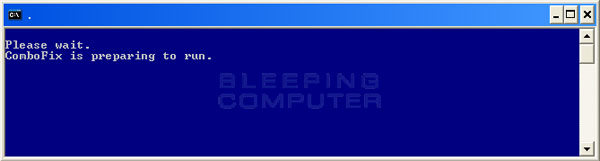
  • ComboFix will now install itself on to your computer. When it is done, a blue screen will appear as shown below.

    cf-preparing.jpg

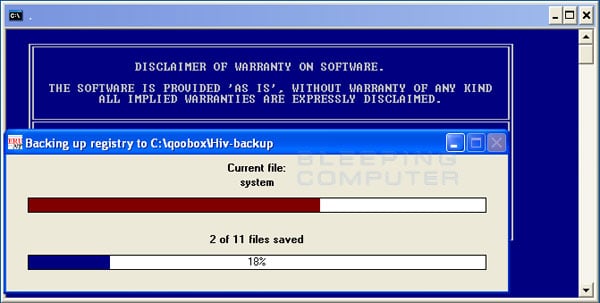
  • ComboFix is now preparing to run. When it has finished ComboFix will automatically attempt to create a System Restore point so that if any problems occur while using the program you can restore back to your previous configuration. When ComboFix has finished creating the restore point, it will then backup your Windows Registry as shown in the image below.

    erunt.jpg

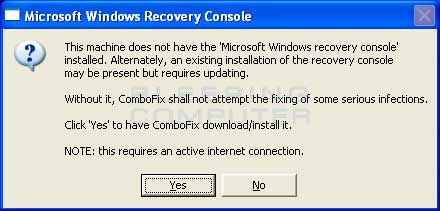
  • Once the Windows Registry has finished being backed up, ComboFix will attempt to detect if you have the Windows Recovery Console installed. If you already have it installed, you can skip to this section and continue reading. Otherwise you will see the following message as shown below:

    recovery-console-prompt.jpg

  • At the above message box, please click on the Yes button in order for ComboFix to continue. Please follow the steps and instructions given by ComboFix in order to finish the installation of the Recovery Console.
  • Please click on yes in the next window to continue scanning for malware.
  • ComboFix will now disconnect your computer from the Internet, so do not be surprised or concerned if you receive any warnings stating that you are no longer on the Internet. When ComboFix has finished it will automatically restore your Internet connection.
  • ComboFix will now start scanning your computer for known infections. This procedure can take some time, so please be patient.
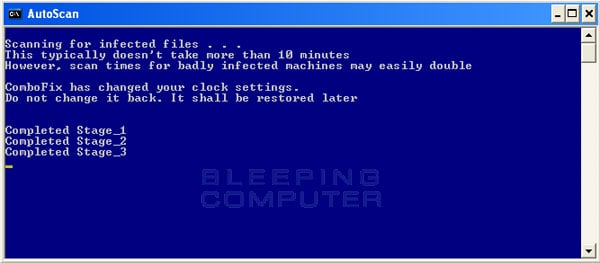
  • While the program is scanning your computer, it will change your clock format, so do not be concerned when you see this happen. When ComboFix is finished it will restore your clock settings to their previous settings. You will also see the text in the ComboFix window being updated as it goes through the various stages of its scan. An example of this can be seen below.

    still-scanning-clockchanges.jpg

  • When ComboFix has finished running, you will see a screen stating that it is preparing the log report.
  • This can take a while, so please be patient. If you see your Windows desktop disappear, do not worry. This is normal and ComboFix will restore your desktop before it is finished. Eventually you will see a new screen that states the program is almost finished and telling you the programs log file, or report, will be located at C:\ComboFix.txt.
  • When ComboFix has finished, it will automatically close the program and change your clock back to its original format. It will then display the log file automatically for you.
  • Now you just click on the edit menu and click on select all, then click on the edit menu again and click on copy. Then come to the forum in your reply and right click on your mouse and click on paste.

If for some reason, if you try to run a program or open a file and you get an error message saying "illegal operation attempted on a registry key that has been marked for deletion", please just reboot your pc and you'll be fine.


In your next reply please post:
  • The ComboFix log
  • An update on how your computer is running
 
OK now i have done as you have posted. Tdskiller found one suspcious file called sptd.sys . i clicked on deletion.

im not exactly sure what combofix accomplished but you can look at the logs and have a look for yourself and make a determination.

there are two log reports and the combo log is in Swedish , use http://translate.google.com/ to translate some lines from Swedish to English.

here are the logs: http://speedy.sh/wemXm/antivirus-reports.zip

alternative download link for logs: http://www.sendspace.com/file/g0qgdb

My computer seems to be kinda same but im not so sure what to look for to see changees.

i look forward for a reply on your opinion. and after all this we can fix my original problem how to access folder- and search alternatives
 
Last edited:
Can you please post the malwarebytes log that removed the infections you had? I do see some other issues though in your log. Please do the following.

1.

Please download AdwCleaner by Xplode onto your Desktop.


•Please close all open programs and internet browsers.
•Double click on adwcleaner.exe to run the tool.
•Click on Scan.
•After the scan you will need to click on clean for it to delete the adware.
•Your computer will be rebooted automatically. A text file will open after the restart.
•Please post the content of that logfile in your reply.
•You can find the logfile at C:\AdwCleaner[Sn].txt as well - n is the order number.

2.

Please download Junkware Removal Tool to your desktop.

•Shutdown your antivirus to avoid any conflicts.

•Very important that you run the tool in this manner:
Right-mouse click JRT.exe and select Run as administrator
Do NOT just double-click it.

•The tool will open and start scanning your system.

•Please be patient as this can take a while to complete.

•On completion, a log (JRT.txt) is saved to your desktop and will automatically open.

•Post the contents of JRT.txt in your next message.

3.

Please download and run the ESET Online Scanner
Disable any antivirus/security programs.
IMPORTANT! UN-check Remove found threats
Accept any security warnings from your browser.
Check Scan archives
Click Start
ESET will then download updates, install and then start scanning your system.
When the scan is done, push list of found threats
Click on Export to text file , and save the file to your desktop using a file name, such as ESETlog. Include the contents of this report in your next reply.
If no threats are found then it won't produce a log.
 
Ok eset online scanner took longest time but now its finally done. Here you have 4 logs, AdwCleaner, esetlog, JRT log and MBAM log.

http://www.sendspace.com/file/skeopg

I asked someone else after she saw my MBAM log and she said I should try RougueKiller scan on my computer. She suspected it was root kot infection. Anyway, have a look at the logs first.
 
Back
Top