OS boot problem

Calibretto

VIP Member
ok so I have a 40GB with XP Home on it. I then installed XP Pro Corp. on a 120GB but the computer won't read the OS upon boot if the 40GB isn't hooked up. The 40GB has to be hooked up in order for the PC to boot the 120GB. If not it says "Error reading OS" and thats it. Any ideas on what the problem could be?
 
What happened there is the boot.ini file was changed on the 40gb drive. Pro added itself to the Home mbr there for the dual boot option. To have Pro boot as a stand alone drive you will need to boot upto the recovery console and type in the two commands with the 40gb unplugged. These are "Fixboot" and "Fixmbr" there. Once done you then replug the 40gb back in and edit the boot.ini file to remove the entry for XP Pro.

First you would have to go into the folder options and uncheck the "hide protected system files" option to make that visible in an explorer window so you can right click on it to uncheck the hidden or read only box and click apply. From there double click on the file to see it open in notepad. It's a quick fix there. You simply forgot to unplug the 40gb when installing Pro onto the 120gb. But you will then need to set the boot order to that drive if the F8 boot menu option isn't seen at post time or you intend to keep the 40gb plugged in.
 
are you talking about the boot.ini file that I should be messing with? Could you give a in depth tutorial on how to do this? You kinda lost me on your last post. heheh.

BTW, the 40GB is IDE and the 120GB is SATA.
 
Last edited:
The process is so easy once you do it once you'll have it down fast. The copy+paste here is what the default XP Home or substitute Pro for that with the rest being the same.

[boot loader]
timeout=30

default=multi(0)disk(0)rdisk(0)partition(1)\WINDOWS
[operating systems]
multi(0)disk(0)rdisk(0)partition(1)\WINDOWS="Microsoft Windows XP home" /NOEXECUTE=OPTIN /FASTDETECT

With the Pro version installed and becoming the default OS automatically despite being on the sata the boot.ini file would look like the second copy+paste with that line being above the Home line.

[boot loader]
timeout=30

default=multi(0)disk(0)rdisk(0)partition(1)\WINDOWS
[operating systems]
multi(0)disk(0)rdisk(1)partition(1)\WINDOWS="microsoft windows XP Professional" /NOEXECUTE=OPTIN /FASTDETECT
multi(0)disk(0)rdisk(0)partition(1)\WINDOWS="Microsoft Windows XP home" /NOEXECUTE=OPTIN /FASTDETECT

You will note the "timeout=30" is the 30 second delay before the default OS starts to load. If for some reason Pro is seen under the Home there you can reverse the order and overwrite the original to set it that way or use the msconfig utility. It now depends if you want the XP Pro as default and dual boot with the Home version or as a stand alone with the 40gb removed from the boot.ini file. The current boot.ini file used is on the 40gb drive. For a stand alone with Windows already installed on the sata simply unplug the 40gb and boot to the recovery console with the XP installation disk to use the two commands for writing a new mbr and boot sector.

With Home on the 250gb ide primary here and Pro on the 500gb sata drive I simply set Home as the default while Vista now enjoys the default with the option to choose between the Home or Pro version. That's a different boot loader there however. Pro had to be installed on the sata when Vista failed to install to a second partition on the second 250gb ide here.

(Note: You will have to excuse the WINDOW S letter being separated when copy+pastes are made. Two screen shots would be a little..?)
 
For a stand alone with Windows already installed on the sata simply unplug the 40gb and boot to the recovery console with the XP installation disk to use the two commands for writing a new mbr and boot sector.

but with the 40gb unplugged it won't bring up anything except "Error Loading OS"

and also Windows XP Pro is on top and then this "Whistler Personal" thing is below the XP Pro.
 
Last edited:
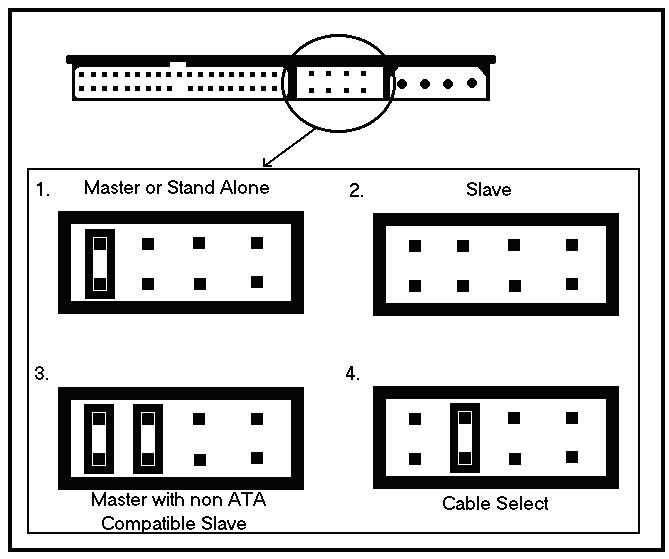
Jumper Settings

If you want to boot windows xp pro from your 120 GB HDD,
Do the Jumper Settings as a 120 GB MASTER & 40 GB as SLAVE
IT WILL BOOT OS(XP) FROM 120 GB HDD.

http://www.seagate.com/support/kb/disc/ref/jumper_settings.html
This link will help you for this Jumper Settings.

chap2-page11-img1.JPG

:cool:
 
No, SATA doesn't have jumpers.
Do as PCeye said. Boot into the recovery console (with 120 only pluged in) and run Fixboot and Fixmbr commands.
 
I can't boot into the recovery console because it won't let me with the 120 just plugged in. I can't do anything except get into the BIOS. That's was my original problem.
 
another thing. When I have the 120 just plugged in, it says it's the third IDE master. and the cd drive is primary IDE master. Why is it like that?
 
How did you get Windows installed onto the sata drive if you couldn't boot with the XP Pro installation disk? Either there is an F8 boot menu option seen during the inital post screen for selecting the drive to boot from or you set the cd rom option as first in the boot order. When you have the ide unplugged that will isolate it from any conceivable or even non conceivable mishap plus ensure the right mbr is repaired.

When first starting the XP installer you will see the option to press R to repair the current installation which brings you to the recovery console. That will be the alternative to the "press enter now to install Windows" option. Once you are at the command prompt run those two commands. If that still fails to see a new mbr and boot sector on the sata you will then probably need to perform a repair install to this done. That will be easier since you already have XP there and may not need a driver disk. But it's a good idea to have the sata drivers on floppy anyways since the Pro mbr is actually the 40gb's Home mbr shared for the dual boot.

In the event you need to perform a repair install on the 120gb follow the instructions seen in the article at http://www.michaelstevenstech.com/XPrepairinstall.htm The repair method will reinstall the system files withoot touching the system registry or folders you have already installed. This will automatically write a new mbr there if the current installation is listed. If not then you will need to have the installer load the sata drivers from a floppy first.
 
Back
Top