Unable to Complete Installation of Windows XP

Joel_Zimmerman

New Member
Hi there.

I am trying to repair a version of Windows XP on a friend's computer. First, I recommended a fresh install because it would be the easiest and safest way, since he just got rid of a virus. He strongly disagreed, saying that he has many programs on his hard drive that he would not be able to install again if he had to do a fresh install. Plus, me or him have no HDD cables to hand to back up 600GB+ of data he has accumulated.

I went about in using my XP disc and it started the repair procedure. However, when it got to 34 minutes remaining, the setup refused to go any further, stating that I needed nVidia Network Bus Installation Disc #1. I searched his MoBo box and found only an AMD-nVIDIA disc which said "(for Windows Vista/Windows Vista 64-bit)" I thought that this couldn't be the right disc, but I replaced the XP disc with the MoBo disc and it still couldn't find the files it wanted. It was searching for "nvenetfd.inf" and "nvenetfdin_". A thorough search on the internet revealed only the "nvenetfd.inf" file so I copied it onto a USB flash drive and plugged it into the MoBo. It didn't respond, indicating that the drivers hadn't yet been installed for the USB slots. I clicked on Cancel, thinking that I could just install the necessary drivers once XP had fully installed. Nothing happened, just hung at 34 minutes. I restarted the computer and redone the whole process again, this time just clicking cancel when it asked for the files. Still nothing.

I am all out of ideas and my friend is still reluctant to let me do a fresh reinstall of the OS. is there any way of overcoming this problem without my friend losing any installed programs or data?

Thanks.
 
What issues is he having now that you need to repair XP? The bad thing about a repair install, it won't fix most issues.
 
When the computer is switched on, the logon screen appears. He enters his password and the desktop comes up. It's then only a matter of time until the desktop completely freezes, apart from the movement of the cursor. Ctrl+Alt+Del or Ctrl+Shift+Esc don't do anything to bring up the task manager. Just from what happens, I'm guessing it's something to do with explorer.exe. I have opened up the computer to see if dust was the issue. Cleaned it out but to no avail.
 
Download this to usb flash drive and then boot to safe mode and run it on the pc. Most likely you still aren't infection free. Then we can see whats going on, and then if its still not running right then we try one more thing and then its up to you to install a fresh copy of windows.

Download and Run ComboFix
If you already have Combofix, please delete this copy and download it again as it's being updated regularly.
  • Download this file here :

    Combofix

  • When the page loads click on the blue combofix download link next to the BleepingComputer Mirror.
  • Save the file to your windows desktop. The combofix icon will look like this when it has downloaded to your desktop.

    cf-icon.jpg
  • We are almost ready to start ComboFix, but before we do so, we need to take some preventative measures so that there are no conflicts with other programs when running ComboFix. At this point you should do the following:

  • Close all open Windows including this one.
  • Close or disable all running Antivirus, Antispyware, and Firewall programs as they may interfere with the proper running of ComboFix. Instructions on disabling these type of programs can be found here.
    Once these two steps have been completed, double-click on the ComboFix icon found on your desktop. Please note, that once you start ComboFix you should not click anywhere on the ComboFix window as it can cause the program to stall. In fact, when ComboFix is running, do not touch your computer at all. The scan could take a while, so please be patient.
  • Please click on I agree on the disclaimer window.
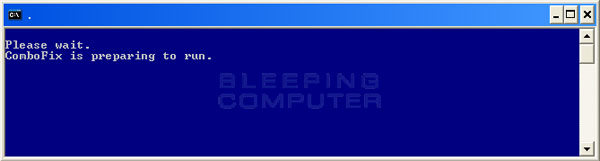
  • ComboFix will now install itself on to your computer. When it is done, a blue screen will appear as shown below.

    cf-preparing.jpg

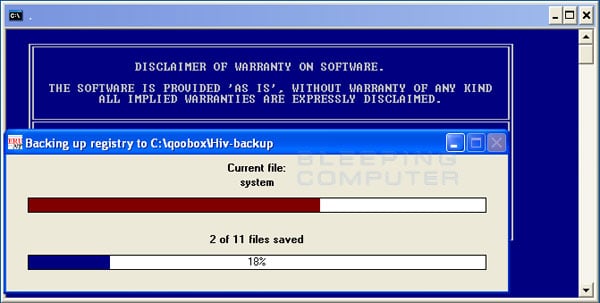
  • ComboFix is now preparing to run. When it has finished ComboFix will automatically attempt to create a System Restore point so that if any problems occur while using the program you can restore back to your previous configuration. When ComboFix has finished creating the restore point, it will then backup your Windows Registry as shown in the image below.

    erunt.jpg

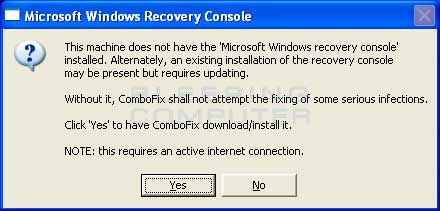
  • Once the Windows Registry has finished being backed up, ComboFix will attempt to detect if you have the Windows Recovery Console installed. If you already have it installed, you can skip to this section and continue reading. Otherwise you will see the following message as shown below:

    recovery-console-prompt.jpg

  • At the above message box, please click on the Yes button in order for ComboFix to continue. Please follow the steps and instructions given by ComboFix in order to finish the installation of the Recovery Console.
  • Please click on yes in the next window to continue scanning for malware.
  • ComboFix will now disconnect your computer from the Internet, so do not be surprised or concerned if you receive any warnings stating that you are no longer on the Internet. When ComboFix has finished it will automatically restore your Internet connection.
  • ComboFix will now start scanning your computer for known infections. This procedure can take some time, so please be patient.
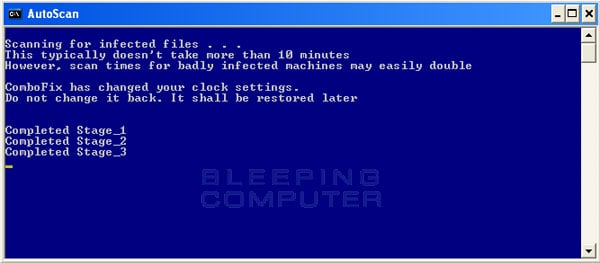
  • While the program is scanning your computer, it will change your clock format, so do not be concerned when you see this happen. When ComboFix is finished it will restore your clock settings to their previous settings. You will also see the text in the ComboFix window being updated as it goes through the various stages of its scan. An example of this can be seen below.

    still-scanning-clockchanges.jpg

  • When ComboFix has finished running, you will see a screen stating that it is preparing the log report.
  • This can take a while, so please be patient. If you see your Windows desktop disappear, do not worry. This is normal and ComboFix will restore your desktop before it is finished. Eventually you will see a new screen that states the program is almost finished and telling you the programs log file, or report, will be located at C:\ComboFix.txt.
  • When ComboFix has finished, it will automatically close the program and change your clock back to its original format. It will then display the log file automatically for you.
  • Now you just click on the edit menu and click on select all, then click on the edit menu again and click on copy. Then come to the forum in your reply and right click on your mouse and click on paste.


In your next reply please post:
  • The ComboFix log
  • A fresh HiJackThis log
  • An update on how your computer is running
 
What you have to do is build a Windows XP disc with the nVidia driver file on the disc so the setup does not have to ask for it. If I were doing this I'd have to look it up so can't explain it here... I assume someone somewhere has written a guide explaining how to do this. This is comming up because the registry on the old OS you are repairing has something in it for the nVida driver file and that has altered the installation from original spec so now it seems like that file is missing.

Building a Windows XP disc with the drivers built-in is quite an advanced procedure, normally done by OEMs so they can provide a recovery disc to their customers. Can be done though. Depends on how desparate you are.
 
Back
Top