My computer seems to have some corrupt files or bad sectors on the hard drive. The computer runs perfect once you get it going and I rarely turned it off for this reason, but its now reached a point where windows simply wont boot. HP want to replace the hard drive, and they can, but I just need to get it booted once so I can back up my personal files first. The problem is, I dont have a Windows DVD. The OS is located on a partition on the hard drive and without access to windows I cant make a recovery disk. I have done some searching, but I cant find dedicated W7 files to make a boot disk. Im not even sure this will help. I can always remove the drive and put it in another PC and copy files that way but I may void the extended warranty Im paying for. HP want to make life as quick and easy as possible for their technicians so swapping the drives is a 5 minute job and they take the bad one with them, which doesnt help me in the slightest. Thanks HP. The system just keeps running disk scans and its finding unreadable sectors. What other options do I have?? This really sucks as I was only a day away from buying an external back up drive and there are heaps of things in that bad drive I need. Cheers JB

You are using an out of date browser. It may not display this or other websites correctly.
You should upgrade or use an alternative browser.
You should upgrade or use an alternative browser.
Boot disk for W7
- Thread starter Jimmybeam
- Start date

massahwahl
VIP Member
It should not void your warranty if you switch it into another machine. I dont see why it would anyway, but im sure you could ask them before you did it.
Well, they have those little tags over the drive cover so they will know if its been tampered with. Trust me, I'd love nothing more than to remove it, copy my files over and put it back in, but I really dont want to void my warranty incase I have other issues down the track. Its just as well I took out extended warranty as it is, but on the flip side, its making things harder as well because of the nature of the problem. If I can just boot it to the recovery screen, I can run one of the utilities and hopefully get it going temporarily. Thanks for you help..

massahwahl
VIP Member
I dont think they can prevent you from removing your hard drive. Might want to call just to be double safe, but I wouldnt let them scare you.

strollin
Well-Known Member
If you're talking about a Win 7 System Repair disk, yes you can create it on another computer. However, if you're using 64-bit it needs to be created on a system running Win 7 64-bit, likewise for 32-bit.Still need a boot CD for this issue. I guess I can just use any PC with Windows 7 on it and create one?? there are other files that need to be backed up and is not as simple as copying photos and music over.
The System Repair disk won't boot to a desktop and let you copy files and such, it can restore a backup and do some repairs only.
Sounds like you really need one of the Linux based boot disks that will allow you to boot the machine and copy files off the drive. Something like Hiren's boot CD.
If you're talking about a Win 7 System Repair disk, yes you can create it on another computer. However, if you're using 64-bit it needs to be created on a system running Win 7 64-bit, likewise for 32-bit.
The System Repair disk won't boot to a desktop and let you copy files and such, it can restore a backup and do some repairs only.
Sounds like you really need one of the Linux based boot disks that will allow you to boot the machine and copy files off the drive. Something like Hiren's boot CD.
This is only a 32bit system. If the boot disk will at least get me into the recovery utility and repair the damaged Windows files, that would be great. I know its not going to repair the damaged sectors, but if it can rewrite the files in those damaged sectors, I'll be in business, hopefully.

Thanks for your help.

S.T.A.R.S.
banned
Do this:
-Download Linux Ubuntu ISO image file from here: http://old-releases.ubuntu.com/releases/9.04/
Under DESKTOP CD choose "PC (Intel x86) desktop CD".Download it to your desktop...
-Once the file has been downloaded,burn that ISO image file to a blank CD-ROM disk...
-Now go to that computer from which you want to back up the data from and plug the external hard disk drive in it if you have one.Turn it ON,go to BIOS and put CD/DVD-ROM drive to be the first device to boot from and your hard disk drive as the second device to boot from...
-Open the CD/DVD-ROM tray,put that burned CD inside and close the tray...
-Save BIOS changes to CMOS and restart
-Linux CD will start to boot...
-The first thing you are asked is the language.Choose ENGLISH...
-Next choose the first option called "Try Ubuntu without any change to your computer"...
-Ununtu will start loading and it may take some time...
-Once you get to the desktop,in the upper left corner click PLACES and then click COMPUTER.Now in the window that has just opened you will see your computer's drive and your external drive as well plus other drives such as the CD-ROM and so on.Similar to this picture:
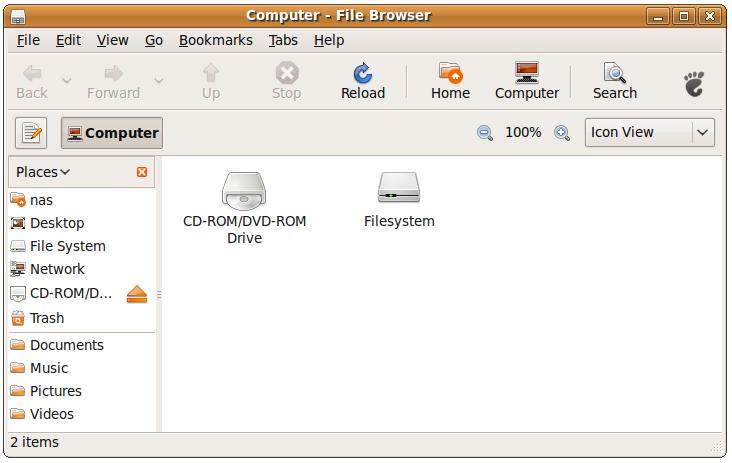
NOTE: Do not touch the "Filesystem" !!!!!!!
-Now go into your computer's hard disk drive and from there copy ALL your important data TO your external hard disk drive!
TIP: To go back to the COMPUTER in order to see the disk drives again,simply click the button called "Computer" which has a small computer icon drawn on the button.
-Once you have backed up all your data,close the window and shut down the Ubuntu by going to the right top corner and click LIVE SESSION USER -> Shut Down and then again click Shut Down in a small window that has just opened.
NOTE: Windows in Ubuntu might not open as fast as in Microsoft Windows OS because Ubuntu is being ran directly from the CD disk so it's slower.So be patient.
Report back with the results!
Cheers!
UAC
-Download Linux Ubuntu ISO image file from here: http://old-releases.ubuntu.com/releases/9.04/
Under DESKTOP CD choose "PC (Intel x86) desktop CD".Download it to your desktop...
-Once the file has been downloaded,burn that ISO image file to a blank CD-ROM disk...
-Now go to that computer from which you want to back up the data from and plug the external hard disk drive in it if you have one.Turn it ON,go to BIOS and put CD/DVD-ROM drive to be the first device to boot from and your hard disk drive as the second device to boot from...
-Open the CD/DVD-ROM tray,put that burned CD inside and close the tray...
-Save BIOS changes to CMOS and restart
-Linux CD will start to boot...
-The first thing you are asked is the language.Choose ENGLISH...
-Next choose the first option called "Try Ubuntu without any change to your computer"...
-Ununtu will start loading and it may take some time...
-Once you get to the desktop,in the upper left corner click PLACES and then click COMPUTER.Now in the window that has just opened you will see your computer's drive and your external drive as well plus other drives such as the CD-ROM and so on.Similar to this picture:
NOTE: Do not touch the "Filesystem" !!!!!!!
-Now go into your computer's hard disk drive and from there copy ALL your important data TO your external hard disk drive!
TIP: To go back to the COMPUTER in order to see the disk drives again,simply click the button called "Computer" which has a small computer icon drawn on the button.
-Once you have backed up all your data,close the window and shut down the Ubuntu by going to the right top corner and click LIVE SESSION USER -> Shut Down and then again click Shut Down in a small window that has just opened.
NOTE: Windows in Ubuntu might not open as fast as in Microsoft Windows OS because Ubuntu is being ran directly from the CD disk so it's slower.So be patient.
Report back with the results!
Cheers!
UAC
Against better judgment, I have removed the drive and placed it in an external drive case. I can access all the files, thankfully, so the drive is working ok. Its going to be a slow process of copying the directories off the old drive via my laptop and onto a new external drive I got. What if I was to copy the recovery partition to a USB stick and boot from that?? Does it need the utility, run from inside windows, to initiate??
Do this:
-Download Linux Ubuntu ISO image file from here: http://old-releases.ubuntu.com/releases/9.04/
Under DESKTOP CD choose "PC (Intel x86) desktop CD".Download it to your desktop...
-Once the file has been downloaded,burn that ISO image file to a blank CD-ROM disk...
-Now go to that computer from which you want to back up the data from and plug the external hard disk drive in it if you have one.Turn it ON,go to BIOS and put CD/DVD-ROM drive to be the first device to boot from and your hard disk drive as the second device to boot from...
-Open the CD/DVD-ROM tray,put that burned CD inside and close the tray...
-Save BIOS changes to CMOS and restart
-Linux CD will start to boot...
-The first thing you are asked is the language.Choose ENGLISH...
-Next choose the first option called "Try Ubuntu without any change to your computer"...
-Ununtu will start loading and it may take some time...
-Once you get to the desktop,in the upper left corner click PLACES and then click COMPUTER.Now in the window that has just opened you will see your computer's drive and your external drive as well plus other drives such as the CD-ROM and so on.Similar to this picture:
NOTE: Do not touch the "Filesystem" !!!!!!!
-Now go into your computer's hard disk drive and from there copy ALL your important data TO your external hard disk drive!
TIP: To go back to the COMPUTER in order to see the disk drives again,simply click the button called "Computer" which has a small computer icon drawn on the button.
-Once you have backed up all your data,close the window and shut down the Ubuntu by going to the right top corner and click LIVE SESSION USER -> Shut Down and then again click Shut Down in a small window that has just opened.
NOTE: Windows in Ubuntu might not open as fast as in Microsoft Windows OS because Ubuntu is being ran directly from the CD disk so it's slower.So be patient.
Report back with the results!
Cheers!
UAC
I could not get the computer to boot with the CD drive. I changed the bios and also at beginning of the startup, I hit esc to bring up the boot menu, changed it to DVD Drive and still no luck. I found this http://cybernetnews.com/windows-7-recovery-disc/ and did the same thing, but still no luck booting from the CD. I also tried booting from a USB drive. Nup..nada..at least I can back up my files, but ultimately, I still want to get into windows so I can perform backups and exports from my invoicing program and also my email.