Buying a new internal drive and repurposing the old one

jmarsico

New Member
I pre-ordered Windows 7 and it should be here within the month, so I need a bit of hard drive advice while I wait. I want to do a clean install, so it's a good time to switch out the drive I've been using for three years for a bigger one. Here's the old one:

http://www.newegg.com/Product/Product.aspx?Item=N82E16822136073

For a new one, how about

http://www.newegg.com/Product/Produ...ickDeals&cm_mmc=AFC-SlickDeals-_-NA-_-NA-_-NA

which is suggested in the roundup thread? A stupid question: why is the drive bare (i.e., the platters are showing)? That seems to be typical for OEM drives, but why?

How about the old drive? It's still in good shape, so I want to put it to use: does it make more sense to buy an enclosure and make it into an external drive to be used for backups, or should it be kept internal? Would the latter option even work side-by-side with the new drive, and what would be its benefits?

Thanks for reading.
 
Seagate 7200.11 drives are some of the worst drives available. I suggest you go with Western Digital. I also suggest you go with a 1TB as almost all of the 1.5TB and 2TB drives have high failure rates. If you do go with a Seagate then make sure it is a 7200.12 drive not the 7200.11 ones. This is my opinion but to me it makes for since to have a bigger drive for storage and backup then for your OS. Lets say you have 600GB worth of files but you backup drive is only 500GB now what. I would get a new HDD for you OS this one is good http://www.newegg.com/Product/Product.aspx?Item=N82E16822136320 and it will be faster then you current 500GB. Then use the extra money to get another drive for backups if you like.
 
Seagate makes good hard drives but many people are having them lock up. Just do a quick Google search "Seagate Firmware failure" and you will see. There are thousands of unhappy people with Seagate. Any hard drive can fail...regardless of the manufacturer. Western Digital drives also fail but at a lower rate than most manufacturers. The unwritten rule of thumb...the bigger the drive size...the more prone they are to failure.

I would suggest a couple things...

1. Use this drive for the primary drive (it will save you some money also) Western Digital Black 1TB
http://www.newegg.com/Product/Product.aspx?Item=N82E16822136284

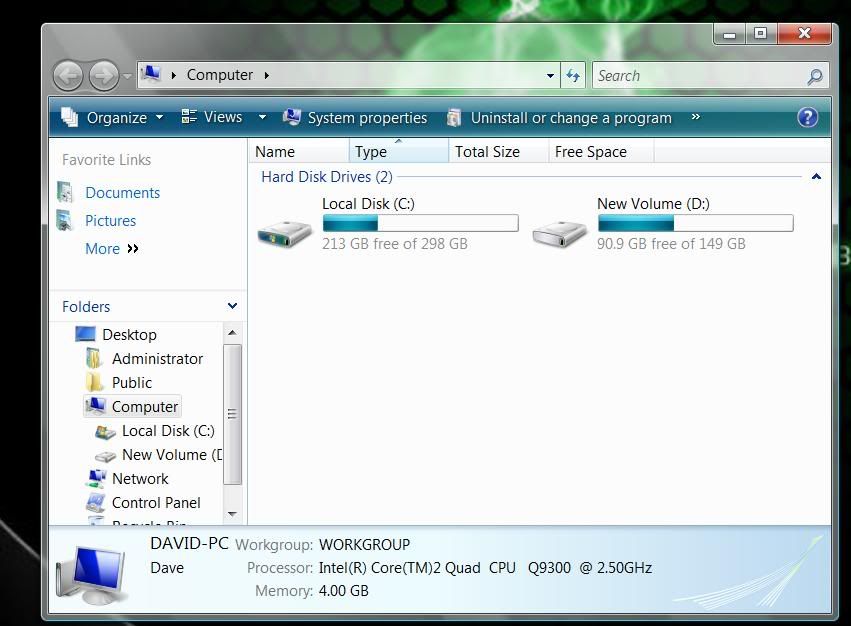
2. Use the second drive as an "internal" back up drive. Just mount it and plug it in with a SATA cable to your motherboard. Your computer will see it just like another separate drive. This is where you can back up pictures and other important files. Buying an enclosure for this drive will do 2 things. Cost money you don't need to spend and lower drive speeds. Some external enclosures have good speeds but connecting the drive via SATA to the motherboard is about as good as it will get.

Like I said...your computer will see the two drives independently

Untitled-41.jpg
 
Seagate 7200.11 drives are some of the worst drives available. I suggest you go with Western Digital. I also suggest you go with a 1TB as almost all of the 1.5TB and 2TB drives have high failure rates. If you do go with a Seagate then make sure it is a 7200.12 drive not the 7200.11 ones. This is my opinion but to me it makes for since to have a bigger drive for storage and backup then for your OS. Lets say you have 600GB worth of files but you backup drive is only 500GB now what. I would get a new HDD for you OS this one is good http://www.newegg.com/Product/Product.aspx?Item=N82E16822136320 and it will be faster then you current 500GB. Then use the extra money to get another drive for backups if you like.
I linked that particular Seagate drive because I assumed the roundup thread would be citing the best option available at the moment, and I didn't just want to wander into this forum and ask a dumb question without at least reading the stickies first to see if it had been answered. :)

I wouldn't mind if my backup drive is significantly smaller than my main drive, since I don't back up the drive's entire contents. It's mostly just personal files, music and movies, and saved games. The current backup I use (an old laptop drive that I kept around and use externally) is only ~30GB and is doing the job well enough for now, though it has gotten quite cramped and really (really, really) needs to be replaced.

Seagate makes good hard drives but many people are having them lock up. Just do a quick Google search "Seagate Firmware failure" and you will see. There are thousands of unhappy people with Seagate. Any hard drive can fail...regardless of the manufacturer. Western Digital drives also fail but at a lower rate than most manufacturers. The unwritten rule of thumb...the bigger the drive size...the more prone they are to failure.
Like I said, I don't have any particular allegiance to one manufacturer or another - I just arbitrarily chose the drive linked in the roundup thread. But I'll keep your remarks in mind for the future.

2. Use the second drive as an "internal" back up drive. Just mount it and plug it in with a SATA cable to your motherboard. Your computer will see it just like another separate drive. This is where you can back up pictures and other important files. Buying an enclosure for this drive will do 2 things. Cost money you don't need to spend and lower drive speeds. Some external enclosures have good speeds but connecting the drive via SATA to the motherboard is about as good as it will get.
Good to know, thanks.

To repeat my earlier stupid question, because it has been overlooked: why are OEM drives bare? I'm certainly no tech expert (or else I wouldn't be asking dumb questions in this forum), but I have to imagine it's not particularly safe for a drive's platters to be exposed.
 
The drive platters are not exposed...they just have the picture like that. Don't worry...you will not receive and "open" platter drive.

They come with just the hard drive...no CD, cables and booklet.
 
The drive platters are not exposed...they just have the picture like that. Don't worry...you will not receive and "open" platter drive.

They come with just the hard drive...no CD, cables and booklet.
That makes a lot more sense. It seemed perfectly strange to have a drive bare like that, so I figured it must just be for display - but then I wondered, first, why should even a display image need to show the hard drive open? How does that help me as a buyer? And, second, why does the product's name include "bare drive"? (It makes sense now that it is not literally "bare," but rather includes just the drive and nothing else. I have spare SATA cables, thankfully. Thanks for answering the stupid question.)
 
That makes a lot more sense. It seemed perfectly strange to have a drive bare like that, so I figured it must just be for display

Hard drives are ugly...they look cooler with the picture showing the platters:D

I have bought many "OEM Bare" drives and they work great;)
 
Hi

I have read your topic. What's useful innformation for my job.
I do agree with you. Those are the most effective way
have a blessed day
 
One more question: in the link you provided, why does the WD sell for nearly twice as much as the Seagate when both models seem to have very similar specs? It's not like Seagate is some no-name cheap brand - it's a reliable and respected manufacturer, no? I'm leaning toward the Seagate just because it's so much cheaper, but I'm curious about the advantages of the WD.
 
Very strange. I could've sworn I had the right page bookmarked, and when I looked at it this morning it was listed as discontinued.

Thanks for pointing out the mistake...
 
Back
Top