CD Drive Has Power, But Not Recognized By Computer

skippy24060

New Member
A buddy of mine had an older Dell Dimension desktop just sitting around his house not being used. He said the last time he used it there seemed to be some issues with it and I could have it if I wanted it. So I went ahead and took it with hopes of fixing it up.

Last night I spent some time cleaning up the drives and getting rid of old and useless software. After I cleaned it up, it started running a little better. I also found a virus and got rid of that. Everything now seems to be running OK, but I am having problems with the CD drive.

The drive has power and opens and closes, however the computer is not recognizing the drive. I have checked all of the physical connections and everything seems to be fine. The CD drive is not listed under My Computer or the device manager.

Please help.
 
Look in device manager and look under cd/dvd drives and see what is listed. If there is an entry but has a yellow exclamation or question mark on it then follow the next 2 procedures. If one don't work, then try the other one. Usually the manual registry edit fixes the issue.

Either run the fix it tool here.

http://support.microsoft.com/kb/982116

Or do the registry edit here.

1. Click Start, and then click Run.
2. In the Open box, type regedit, and then click OK.
3. In the navigation pane, locate and then click the following registry subkey:
HKEY_LOCAL_MACHINE\SYSTEM\CurrentControlSet\Control\Class\{4D36E965-E325-11CE-BFC1-08002BE10318}

4. In the right pane, click UpperFilters.

Note You may also see an UpperFilters.bak registry entry. You do not have to remove that entry. Click UpperFilters only. If you do not see the UpperFilters registry entry, you still might have to remove the LowerFilters registry entry. To do this, go to step 7.

5. On the Edit menu, click Delete.
6. When you are prompted to confirm the deletion, click Yes.
7. In the right pane, click LowerFilters.

Note If you do not see the LowerFilters registry entry, unfortunately this content cannot help you any further.

8. On the Edit menu, click Delete.
9. When you are prompted to confirm the deletion, click Yes.
10. Exit Registry Editor.
11. Restart the computer.
 
Look in device manager and look under cd/dvd drives and see what is listed. If there is an entry but has a yellow exclamation or question mark on it then follow the next 2 procedures. If one don't work, then try the other one. Usually the manual registry edit fixes the issue.

Either run the fix it tool here.

http://support.microsoft.com/kb/982116

Or do the registry edit here.

1. Click Start, and then click Run.
2. In the Open box, type regedit, and then click OK.
3. In the navigation pane, locate and then click the following registry subkey:
HKEY_LOCAL_MACHINE\SYSTEM\CurrentControlSet\Contro l\Class\{4D36E965-E325-11CE-BFC1-08002BE10318}

4. In the right pane, click UpperFilters.

Note You may also see an UpperFilters.bak registry entry. You do not have to remove that entry. Click UpperFilters only. If you do not see the UpperFilters registry entry, you still might have to remove the LowerFilters registry entry. To do this, go to step 7.

5. On the Edit menu, click Delete.
6. When you are prompted to confirm the deletion, click Yes.
7. In the right pane, click LowerFilters.

Note If you do not see the LowerFilters registry entry, unfortunately this content cannot help you any further.

8. On the Edit menu, click Delete.
9. When you are prompted to confirm the deletion, click Yes.
10. Exit Registry Editor.
11. Restart the computer.
how would i do that to the usb ports on xp mate
sorry to thread take over?
 
when you boot up go into the bios setup and look at the drives listed (assuming there is only one hard drive) make sure the primary drive 2 is set to either cd-rom or auto. (remember that in bios setup you can't use the mouse only the keyboard)(and bioses vary so i can't tell you exactly how to setup the drive)(and make sure you setup the primary drive 2 not the 1st slave drive that will just confuse the computer.) (if it is already set to auto or cd-rom then you have a windows problem)(and if you do set something wrong the computer will have a blank screen for a minute when you boot but don't panic it will come up after a second) (I hope my over usage of parenthesis doesn't bother you))))
 
OK guys, update. I finally got the CD drive working!!!!

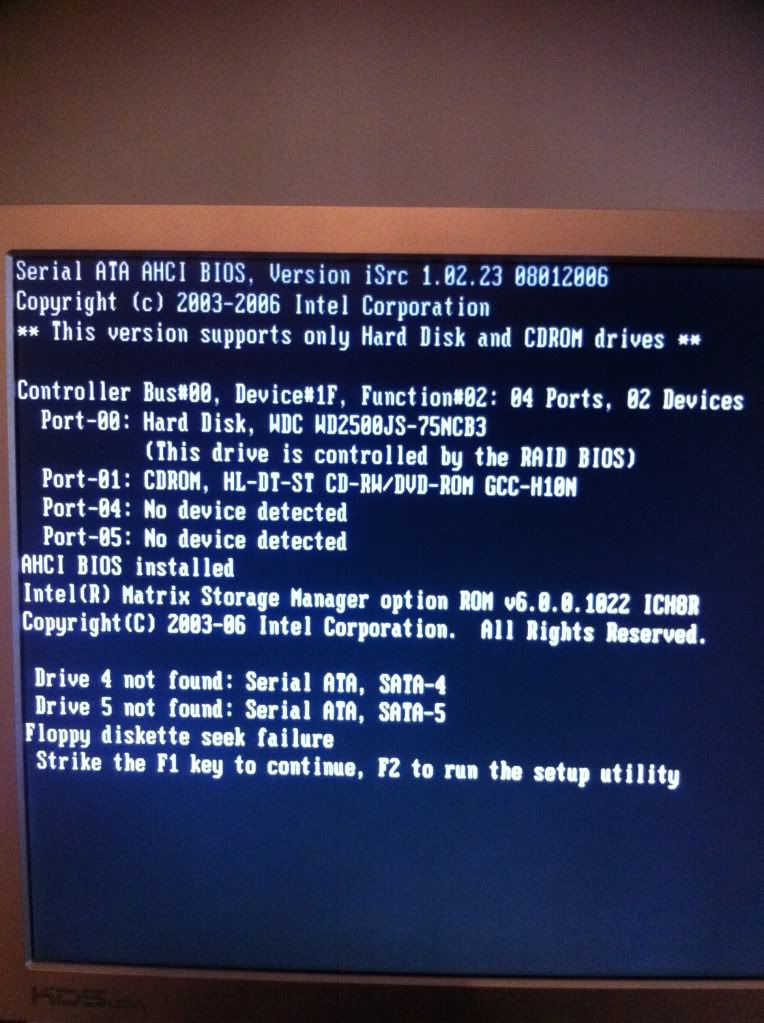
Now, I have another problem/question. Every time I start the computer I am getting this screen below. It was happening when the CD drive wasn't working and I figured that was why it was happening. Now that the drive is working, this screen still comes up every time I load the machine. Can someone please explain what all of this means and provide some advice on how to fix it? (Sorry for the quality of the picture)

LoadScreen.jpg
 
It seems this computer is set for ahci/raid when you only have one drive in the system. The problem is, you should be running in IDE mode instead of ahci/raid. Also you need to disable the floppy drive in the bios.
 
It seems this computer is set for ahci/raid when you only have one drive in the system. The problem is, you should be running in IDE mode instead of ahci/raid. Also you need to disable the floppy drive in the bios.

Cool, that worked, thanks for your help!!! The computer seems to be up and running pretty good now.
 
Back
Top