Hard drive full

seantobin43

New Member
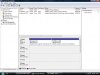
Ok hears the story i bought a desktop 3 years ago and it worked prefect for 6 months but then something happened and it crashed . It wouldnt turn on anymore so i got my friend to fix it . It turn on now but i cant downlad things because the Hard drive is full . It has two hard drives because it is windows Vista , one is Recovery (C) and the other hard drive is Partition_1 (D) . The recovery (C) is full it only is a 26GB hard drive . Partition_1 (D) is 206GB hard drive but there is only a few things on it . The computer is only using the Recovery (C) hard drive for some reason how can i fix this
 
Your friend made a too small paritition for windows. Not sure if Vista can take space from the other partition and add it to c drive or not. You might have to use a third party program to do it. Do you have pictures or music on c drive that you can move to the other drive? Can you post a screen shot of disc management for us?
 
Your friend made a too small paritition for windows. Not sure if Vista can take space from the other partition and add it to c drive or not. You might have to use a third party program to do it. Do you have pictures or music on c drive that you can move to the other drive? Can you post a screen shot of disc management for us?

i cant download things because hard drive is full i will have to take a picture with my camera
 
Like I said before, do you have personal data like pictures or music located on C that can be moved to the other drive? You don't need to download anything to show the screen shot. Just open up disc management and press Alt-print screen. Open paint, press ctrl-v and then save the pic as jpg and attach it to your post by pressing the paper clip in the formatting tools in your reply box.
 
you can extend a partition with windows 7 pro. you might be able to with disk management. at least i can create, format, shrink or and extend to either or.

To create and format a new partition (volume)
Click to open Computer Management. If you're prompted for an administrator password or confirmation, type the password or provide confirmation.

In the left pane, under Storage, click Disk Management.

Right-click an unallocated region on your hard disk, and then click New Simple Volume.

In the New Simple Volume Wizard, click Next.

Type the size of the volume you want to create in megabytes (MB) or accept the maximum default size, and then click Next.

Accept the default drive letter or choose a different drive letter to identify the partition, and then click Next.

In the Format Partition dialog box, do one of the following:

If you don't want to format the volume right now, click Do not format this volume, and then click Next.

To format the volume with the default settings, click Next.

Review your choices, and then click Finish.

Note
When you create new partitions on a basic disk, the first three will be formatted as primary partitions. Beginning with the fourth, each one will be configured as a logical drive within an extended partition.

To format an existing partition (volume)
Warning
Formatting a volume will destroy any data on the partition. Be sure to back up any data you want to save before you begin.

Click to open Computer Management. If you're prompted for an administrator password or confirmation, type the password or provide confirmation.

In the left pane, under Storage, click Disk Management.

Right-click the volume that you want to format, and then click Format.

To format the volume with the default settings, in the Format dialog box, click OK, and then click OK again.

Notes
You cannot format a disk or partition that is currently in use, including the partition that contains Windows.

The Perform a quick format option will create a new file table, but will not fully overwrite or erase the volume. A quick format is much faster than a normal format, which fully erases any existing data on the volume.

 
Last edited:
When you right click on partition 1 and click on shrink volume, does it give you the option to add it to C?
 
I think at this point, back up your data and do a fresh install of windows. Making sure you delete your existing partitions and remake them. I would make at least a 50 gb partition for windows and programs and the balance of the drive for data.
 
What brand of computer is this? Sometimes they allow you to make recovery cd's from within the operating system.
 
here it is
7


http://tinypic.com/r/2iivb03/7
 
Sometimes the dell cd can be used, but not sure if it would work with your system or not.
 
Back
Top