Hard Drive Recovery

Goodbhoy

New Member
I have a hard drive taken from an old PC, put it in a casing and have been using it satisfactorily as an external HDD.

The cat knocked it off the top of my desktop PC and now my PC doesn't see it.
The drive is powered on ok and I can hear it whirring around.

I am not really bothered about the drive but need to get all the data off.
I have downloaded Ubuntu to see if I can access it that way but I am unable to see it.

I have dismantled the casing and ensured that the HDD is firmly seated within the casing. The data is extremely important to me but the drive itself is less important.

I have Windows 8.1
 
Can you take the drive out of the casing and directly attach it to your computer using a sata cable?
 
Can you take the drive out of the casing and directly attach it to your computer using a sata cable?

I don't have a sata connection cable.
The HDD is visible under devices but will not allow me to access it. (see attached image)
Troubleshooting just disconnects it then reconnects telling me it has fixed it but it is exactly the same.
 
Last edited:
If you can get it attached to your pc directly, and it still don't work then you know for certain that the drive is bad. Sometimes the casing or cable/connection is bad. But I'm afraid the only way you will be able to recover your data is send it off to a professional data recovery center and pay hundreds of dollars.
 
Is it visible in Ubuntu at all? If you open up the terminal, what's the output for "ls /dev/sd*"? If your computer only has 1 hard drive and there are no other storage devices attached, you might see /dev/sdb listed. If so, there's a tool called dd that can copy the contents of the entire hard drive to a file even if the partitions are not detected; you can then try running a recovery on this file (or write it onto another hard drive.) The important thing is to get as much stuff off it as possible as soon as possible.
 
Is it visible in Ubuntu at all? If you open up the terminal, what's the output for "ls /dev/sd*"? If your computer only has 1 hard drive and there are no other storage devices attached, you might see /dev/sdb listed. If so, there's a tool called dd that can copy the contents of the entire hard drive to a file even if the partitions are not detected; you can then try running a recovery on this file (or write it onto another hard drive.) The important thing is to get as much stuff off it as possible as soon as possible.
Thanks, I will give that a try and report back.
 
Is it visible in Ubuntu at all? If you open up the terminal, what's the output for "ls /dev/sd*"? If your computer only has 1 hard drive and there are no other storage devices attached, you might see /dev/sdb listed. If so, there's a tool called dd that can copy the contents of the entire hard drive to a file even if the partitions are not detected; you can then try running a recovery on this file (or write it onto another hard drive.) The important thing is to get as much stuff off it as possible as soon as possible.
I can't see it anywhere in Ubuntu but a am only a very basic novice in Ubuntu.

The output was as follows:-

/dev/sda /dev/sda2 /dev/sda4 /dev/sda6 /dev/sdb
/dev/sda1 /dev/sda3 /dev/sda5 /dev/sda7 /dev/sdc
 
Does anyone have a link (in the uk) where I can get the correct cable to attach my hdd to my pc without the casing.

The connection area is shown below.

I have seen some online byt it looks like the wrong type of connection.
 
Last edited:
(NOTE: The following doesn't recover any tangible files, it just creates a byte-by-byte copy of the HD contents (as best as it can) so, in case your hard disc dies completely (if it hasn't already), you can still try to do a recovery on the image or possible write the contents of the image to another HD and try to do a recovery on it. If they're too complicated or you don't want to risk playing around with dd, you could just skip them and try a program like piriform recuva on Windows and see if it works. Using recuva might actually be the best course of action for someone inexperienced, but note that it will be slower and the chances of the hard disc dying halfway through are higher.)

So, it's detected 3 hard drives - do you know how many your computer has, and do you have any external storage attached to your machine? Try the following commands:

sudo dd if=/dev/sdb of=/dev/zero bs=1M count=8 iflag=sync
sudo dd if=/dev/sdc of=/dev/zero bs=1M count=8 iflag=sync

And observe which devices (if any) have the light flash or make noise. You can try it with if=/dev/sda too, though sda should be your primary hard drive. Be careful with dd, and make sure you don't get the if and of mixed up - that command can destroy data permanently if you make a mistake with it. Once you have identified the broken hd, use the following command:

sudo dd if=/dev/sdb of=/mount/someplace/filename conv=sync,noerror

This effectively creates an image of the hard drive (if, of course, the hard drive isn't borked beyond recovery already.) Replace sdb with whatever device is your hard drive, and /mount/someplace with a location that definitely has enough space to store an image of the entire hard drive (i.e. it needs to have more free space than the entire capacity of the disc you're trying to recover.) Now, the latter part might be tricky if you're new to Linux... I don't actually know where Ubuntu mounts devices by default. Once you have definitely mounted a partition (just go to file manager and click the icon of the device, it'll mount it automatically) where you want to store the image, Try
ls /media
ls /var/run/media
ls /mount
ls /var/run/mount
One of these locations should have the mount point for the drive you mounted. It might be possible to get the path just using the file manager, but I haven't used Ubuntu for ages, I would have no idea how to do that. 'ls' just lists the contents of a directory, if you get more than one folder, just use ls on it to see if the contents look familiar. Once you have identified the location, just use the dd command with /mount/someplace replaced as appropriate.

As for connecting it, just get a SATA cable. There is exactly 1 kind available. Or wait for someone else to post a link... I don't know anything of computer shops in the UK.

 
Yeah that's just a SATA connection. Any internal SATA cable or SATA hard drive enclosure would work.
 
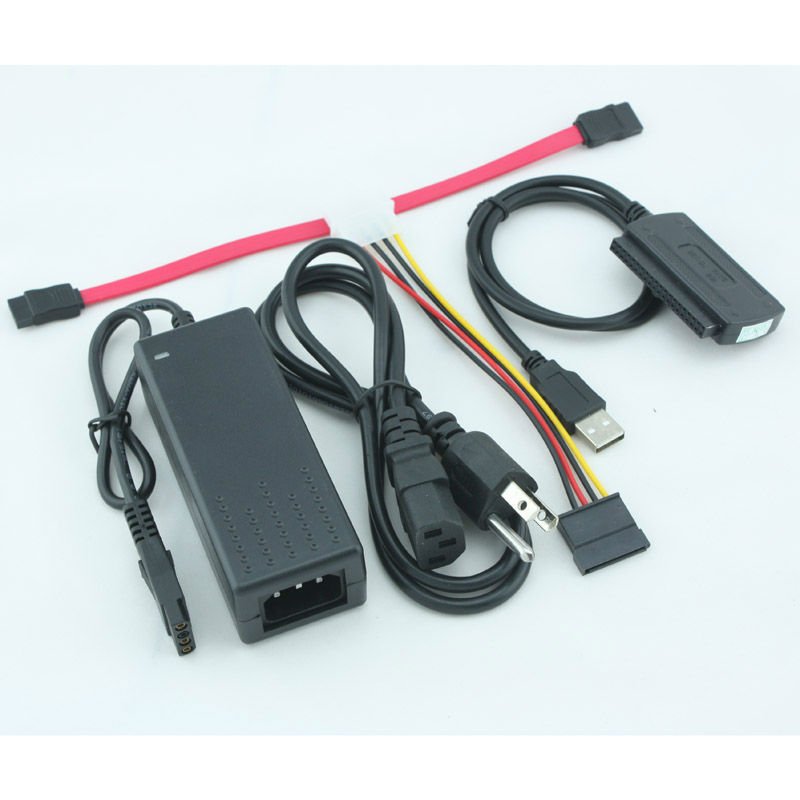
There are hard disk drive adapters which give the HDD it's own power and you can connect it through USB such as this (it supports PATA and SATA):
USB-2-0-for-SATA-IDE-2-5-3-5-Hard-Drive-Adapter-Cable-Black-Color.jpg
 
(NOTE: The following doesn't recover any tangible files, it just creates a byte-by-byte copy of the HD contents (as best as it can) so, in case your hard disc dies completely (if it hasn't already), you can still try to do a recovery on the image or possible write the contents of the image to another HD and try to do a recovery on it. If they're too complicated or you don't want to risk playing around with dd, you could just skip them and try a program like piriform recuva on Windows and see if it works. Using recuva might actually be the best course of action for someone inexperienced, but note that it will be slower and the chances of the hard disc dying halfway through are higher.)

So, it's detected 3 hard drives - do you know how many your computer has, and do you have any external storage attached to your machine? Try the following commands:

sudo dd if=/dev/sdb of=/dev/zero bs=1M count=8 iflag=sync
sudo dd if=/dev/sdc of=/dev/zero bs=1M count=8 iflag=sync

And observe which devices (if any) have the light flash or make noise. You can try it with if=/dev/sda too, though sda should be your primary hard drive. Be careful with dd, and make sure you don't get the if and of mixed up - that command can destroy data permanently if you make a mistake with it. Once you have identified the broken hd, use the following command:

sudo dd if=/dev/sdb of=/mount/someplace/filename conv=sync,noerror

This effectively creates an image of the hard drive (if, of course, the hard drive isn't borked beyond recovery already.) Replace sdb with whatever device is your hard drive, and /mount/someplace with a location that definitely has enough space to store an image of the entire hard drive (i.e. it needs to have more free space than the entire capacity of the disc you're trying to recover.) Now, the latter part might be tricky if you're new to Linux... I don't actually know where Ubuntu mounts devices by default. Once you have definitely mounted a partition (just go to file manager and click the icon of the device, it'll mount it automatically) where you want to store the image, Try
ls /media
ls /var/run/media
ls /mount
ls /var/run/mount
One of these locations should have the mount point for the drive you mounted. It might be possible to get the path just using the file manager, but I haven't used Ubuntu for ages, I would have no idea how to do that. 'ls' just lists the contents of a directory, if you get more than one folder, just use ls on it to see if the contents look familiar. Once you have identified the location, just use the dd command with /mount/someplace replaced as appropriate.

As for connecting it, just get a SATA cable. There is exactly 1 kind available. Or wait for someone else to post a link... I don't know anything of computer shops in the UK.

Thanks for that but it sounds way to complicated for me to try.
I don't think the disk will die as it has been whirring away for the last week whilst I have been trying to access it.

I think it will be easier to get a SATA cable first to rule out the enclosure as I said before, it sounds like the hdd is running.

I did purchase a SATA cable some time ago (shown) but it had a series of holes rather than a slot and didn't have any power for the drive.
I have seen these again on the internet so was unsure of exactly what to buy.
 

Attachments

  • IMAG0293.jpg
    IMAG0293.jpg
    92.8 KB · Views: 156
There are hard disk drive adapters which give the HDD it's own power and you can connect it through USB such as this (it supports PATA and SATA):
USB-2-0-for-SATA-IDE-2-5-3-5-Hard-Drive-Adapter-Cable-Black-Color.jpg

Thanks but that one looks like the 'hole' connectors which I posted but the drive needs a slot type of connection.

The one I have is supposed to be a IDE/SATA connector (with no power supply) but both sides of the connection have holes.
 
The 'hole' connector you posted looks like PATA-SATA adapter. Just take it off and you should be alright to use the cable (unless the cable is actually permanently connected to the adapter... hard to tell from the picture.)
 
The 'hole' connector you posted looks like PATA-SATA adapter. Just take it off and you should be alright to use the cable (unless the cable is actually permanently connected to the adapter... hard to tell from the picture.)
It says it is an IDA/SATA connector (printed on the terminal) but none of the terminals either side of the block will fit my hdd as the hdd needs a slot type of connection.
The cable is permanently connected to the terminal block.
 
Yea, that thing is only good for connecting an IDE drive to a SATA port, you have a SATA drive... you'll need an ordinary SATA cable. They will have identical connectors at both end, the same as the SATA end of your cable (i.e. not the large one with holes in it.)
 
What's the problem?
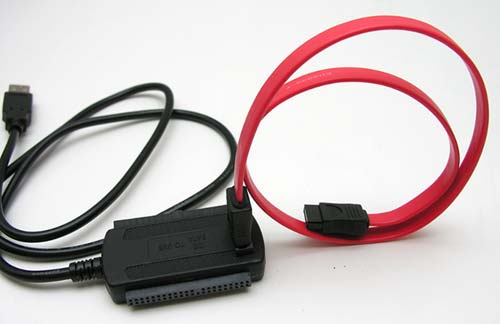
That adapter supports both PATA and SATA 2.5 and 3.5.
Those holes on both sides are for PATA either 2.5 or 3.5.
On the top you have the slot to attach the SATA wire which then goes to the hard disk drive...
If the SATA wire is attached,it's the same thing...
brando-sata-ide5.jpg


So that goes to HDD and the USB side goes to the USB port on the motherboard.
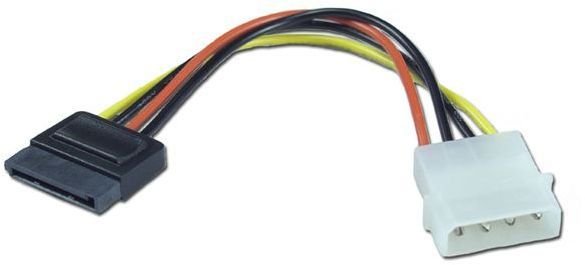
And now the last things you need are PATA to SATA wire and HDD power adapter:
21C8095E77318305026578519482DFD2F71C4BDB_lis.jpg

Wholesale-Free-Shipping-10-Pieces-Lot-New-12V-5V-AC-Adapter-Power-Supply-HDD-HARD-DISK.jpg


My head is killing me right now by the way...damn headaches!:mad::D
 
Uh, hello?! Do you not see that red cable? That's a SATA cable right there. You keep it plugged into that adapter, and then plug the red cable into your drive. Now take the power brick and attach the SATA power connector adapter to the 4-pin molex adapter to turn it into a SATA adapter. Then plug it in, power it on, and plug it into your computer.
 
Back
Top