hi,
I have posted this problem on several computer forums and after getting a
reply asking a question or two...never another. Not sure what I am doing wrong. but I am gonna try here and see if anyone can help me.
I recently re-installed XP pro 2002 with service pack 3
I am using a AMD Athlon 64 processor 3500+, 2.2GHZ, 448 MB of RAM
I formatted my c drive where I put the XP .
It was a brand new clean install off the store bought copy of XP Pro..to my C drive..I only use the C drive for Windows and a couple of other programs. I use the D drive for all other programs and the E drive for making videos. they are still working fine...
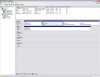
I now have new items in my device manager ..(see pic)
I have 3 hard drives. c, d, and e
I had 3 USBs connected when I did the re-install one goes to my printer, one to a scanner and one to the remote for the mouse.
I have 2 DVD rw that show up as CD roms. whenever I place a DVD in them they change from DVD RW to to CD rom. sometimes this will
cause a shutdown when I try to burn a DVD, but not always. I notice that autorun will change to ...what do you want to do with this CD when I put a blank DVD in the DVD drives.
the DVD RWs will read and play DVDs and the autorun will ask what I want to do with the DVDs.
I installed after wiping everything off the C drive (14 gig) and used a store bought copy of XP Pro version 2002. with service pack 3...YES I have 3 harddrives that are working right now. same as I have always had....I have a C drive where the XP is... I have the E ( 89 gigs) drive which is listed on the photo and the device manager next to the C and the 2 reflected drives as you call them which are the ones that showed up out of nowhere after the re-install. and I have the D drive (37 gigs). I know I have these as I put them in the tower when I built it and I have been using them before and after the re-install. the Drives that show up without letters assigned to them are the ones I want to delete. Physically they do not exist. the device manager says they are healthy but unknown partition and 100% clean.
this machine has always had XP on it.
I have a GeForce 6100 M9 motherboard that is pretty much self contained, has sound and video built in.
I used to have a different XP disc, but replaced it with a new one right out of the microsoft envelope.
I had it on this machine working fine until I got a Virus a couple of weeks ago and decided to wipe it clean and start fresh.
1) ....should I / can I delete the new invisible hard drives in the device manager? they show up as unknow partitions and are 100% un-used.
2).... what can I do about the DVD RW issue?
thanks for any help you can offer.
I have posted this problem on several computer forums and after getting a
reply asking a question or two...never another. Not sure what I am doing wrong. but I am gonna try here and see if anyone can help me.
I recently re-installed XP pro 2002 with service pack 3
I am using a AMD Athlon 64 processor 3500+, 2.2GHZ, 448 MB of RAM
I formatted my c drive where I put the XP .
It was a brand new clean install off the store bought copy of XP Pro..to my C drive..I only use the C drive for Windows and a couple of other programs. I use the D drive for all other programs and the E drive for making videos. they are still working fine...
I now have new items in my device manager ..(see pic)
I have 3 hard drives. c, d, and e
I had 3 USBs connected when I did the re-install one goes to my printer, one to a scanner and one to the remote for the mouse.
I have 2 DVD rw that show up as CD roms. whenever I place a DVD in them they change from DVD RW to to CD rom. sometimes this will
cause a shutdown when I try to burn a DVD, but not always. I notice that autorun will change to ...what do you want to do with this CD when I put a blank DVD in the DVD drives.
the DVD RWs will read and play DVDs and the autorun will ask what I want to do with the DVDs.
I installed after wiping everything off the C drive (14 gig) and used a store bought copy of XP Pro version 2002. with service pack 3...YES I have 3 harddrives that are working right now. same as I have always had....I have a C drive where the XP is... I have the E ( 89 gigs) drive which is listed on the photo and the device manager next to the C and the 2 reflected drives as you call them which are the ones that showed up out of nowhere after the re-install. and I have the D drive (37 gigs). I know I have these as I put them in the tower when I built it and I have been using them before and after the re-install. the Drives that show up without letters assigned to them are the ones I want to delete. Physically they do not exist. the device manager says they are healthy but unknown partition and 100% clean.
this machine has always had XP on it.
I have a GeForce 6100 M9 motherboard that is pretty much self contained, has sound and video built in.
I used to have a different XP disc, but replaced it with a new one right out of the microsoft envelope.
I had it on this machine working fine until I got a Virus a couple of weeks ago and decided to wipe it clean and start fresh.
1) ....should I / can I delete the new invisible hard drives in the device manager? they show up as unknow partitions and are 100% un-used.
2).... what can I do about the DVD RW issue?
thanks for any help you can offer.