

Cut it with the caps and bold text mate. I don't see what's so difficult, all you have to do is mount the ISO and see if the game works. You don't mount the ISO by dragging it into the 'virtual drive', you need to mount it by (inside of VMware) doing this:
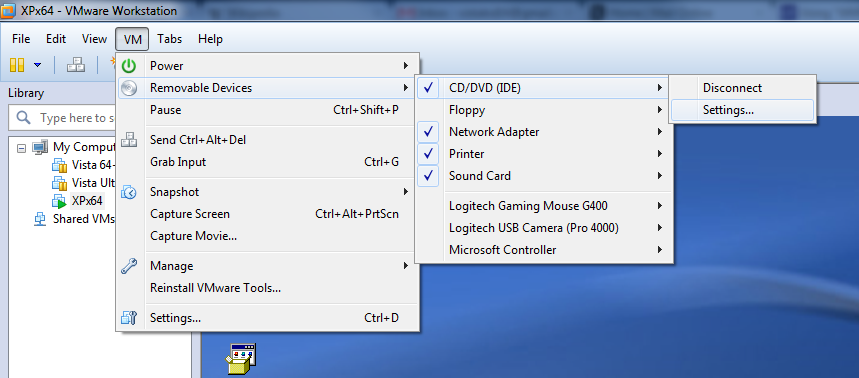
1 - Go to VM -> Removable Devices -> CD/DVD (IDE) -> Settings
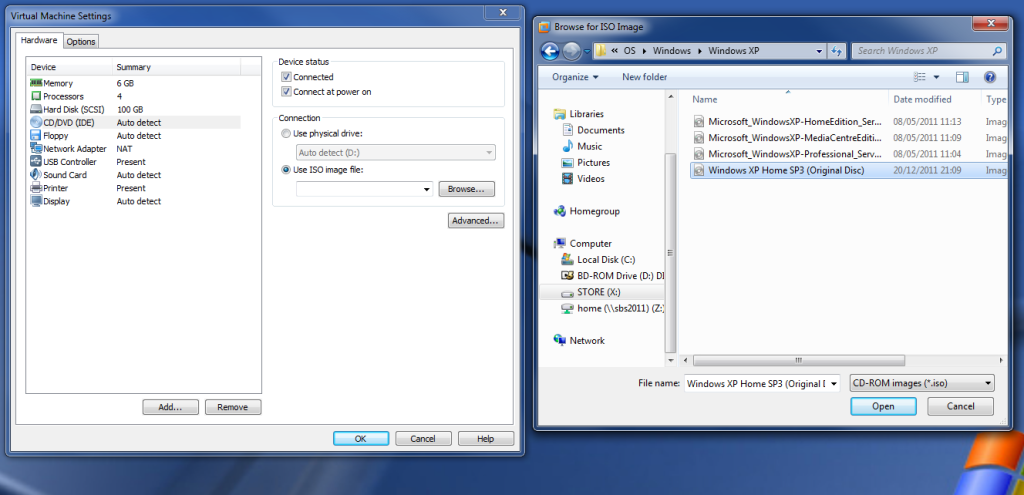
2 - Click 'Use ISO Image File' and find your ISO, in this example I'm gonna use an IOS of XP. Once selected, click 'OK' and then 'OK' again
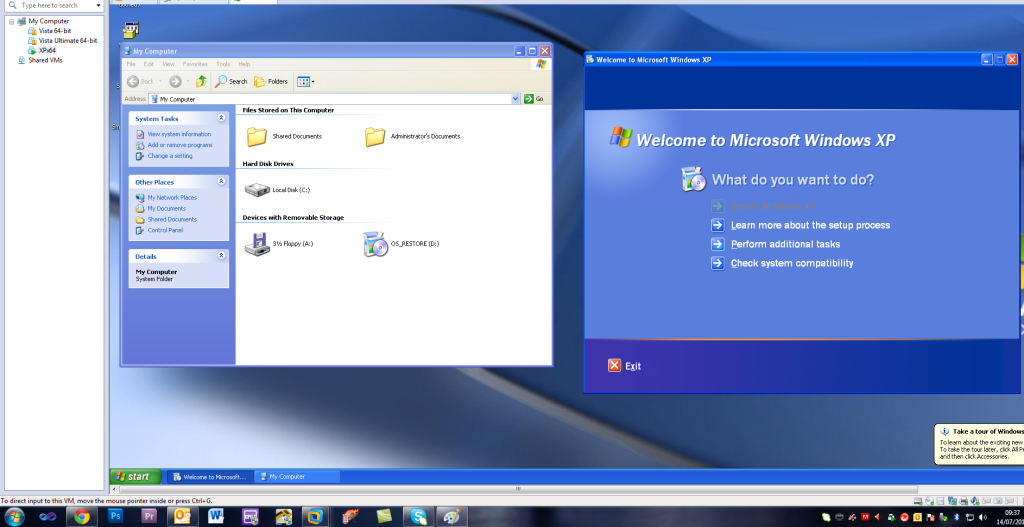
3 - And the VM of XP will see the ISO as a CD
That's how you do it in VMware Workstation 8. What version do you have?
Leave the ISO mounted (do not unmount it) and see if the game works.
1 - Go to VM -> Removable Devices -> CD/DVD (IDE) -> Settings
2 - Click 'Use ISO Image File' and find your ISO, in this example I'm gonna use an IOS of XP. Once selected, click 'OK' and then 'OK' again
3 - And the VM of XP will see the ISO as a CD
That's how you do it in VMware Workstation 8. What version do you have?
Leave the ISO mounted (do not unmount it) and see if the game works.
