WHAT IS THIS AND HOW DO I GET RID OF IT?

OK, the pop up I am getting mentions to see Visual C+ documentation so I looked into that. I am now thinking this pop up "might" have something to do with Microsoft Edge, and as you know I do not use Edge. In fact, I found an Edge deflector years ago because Edge was very aggressivly trying to get me to switch from Chrome. It might also have something to do with CoPilot. Could that be what this is all about? If not, forget it. Lets stay on the task to get rid of this pop up.

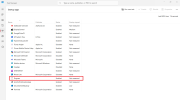
Here's a screenshot of the page I got when typed in Visual C+ in the bottom search bar on my task manager:

1775074272566.png
 
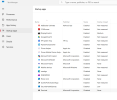
Go back into task manager startup tab and disable the one circled in red.

canam.png

Then restart the pc and see if you still get the popup. Other than that, I'm not sure what else to tell you to do other than doing a system restore back to a day before the pop up even started occuring and providing you have system restore enabled.

Good luck.
 
OK, it's getting close to that time when I sign off for the day, and I have tell you that I did NOT get one of those pop ups today. I will let you know if I get one tomorrow.

Mark
 
Thats awesome.

Now lets try to figure out what program that is. Go back into task manager and right click on the entry that i had you disable and click on properties, take a screenshot of it and post it. That will give us the location and file name causing it. I have a feeling its something that wasn't uninstalled correctly because of it being labeled as "program" instead of the actual name.
 
Monday 1:07PM PST: OK, I am going to go out on a limb and declare that you have fixed my problem once again! So THANKS johnb35!

I think I already posted you the path (above) and it WAS Adobe like you first thought! But here it is again:
1775506031697.png
 
Thats not what I actually asked for but Ok. If you follow what I said to do in task manager, we can actually find out what file is causing the issue and we can get it permanently off your system.
 
Looks good now. Hopefully that was it and it seems like it was.

However, I just researched that CCXprocess and that is per google search.

CCXProcess (Creative Cloud Experience Process) is a legitimate Adobe background component for Creative Cloud apps that manages tutorials, stock templates, and library syncing. While safe, it is not essential for core application function and can be disabled in Task Manager or by altering Adobe settings if it causes high CPU usage.

So there is still some adobe cloud services still on your pc unless you reinstalled adobe because this process wasn't on your original screenshot.
 
Yes, lets hope. But I am feeling pretty good that it's gone.

So how are you with old phones? I've had an old ATT ZTE Maven III cell phone for over ten years if you remember. Also, if you remember I cannot affrod to replace it because my wife and I live on SSDI and she's the one who needs a worling phone. I am 75 and in a wheelchair, and I don't really need a phone for anything else but making calls. However, my old phone did use to do alot of things and I love getting pictures from my adult kids in texts. So, up until recently I could send these text photos to my Gmail and from there, put them on my Google Drive program on my desktop PC. But yesterday I tried to send some Easter pics I got from a text to my gmail but it wouldn't work. I did what I always do but the photos I sent never appeared in my Gmail. In fact I tried to send them several times but nothing has appeared as yet.

Got any ideas?
 
Are you sending them via email program on the phone? If so, check the outbox to make sure they were actually sent. Also check the spam folder on your gmail to make sure they didn't go to spam instead of your actual inbox.
 
First, if you want to put this new topic in another area then go ahead. Just let me know where you put it.

Okay, here's my path as close as I can emember: I get a text with a picture from someone. I then press and hold on the picture to get a blue film over it. I then tap the 3 vertical dots and tap on save. Then I go to photos and find the picture I just saved. I then tap it and a checkmark appears on it. Also now, at the top of the screen I tap on an icon that looks like a V laying on it's right side. I tap that and I get a list of addresses where to send it. I then send that picture to my Gmail address and a notice appears on my phones screen that the picture was sent. Once it appears in my Gmail I can easily transfer that picture into my Google Drive. BUT, as of yeaterday, after doing all those steps it no longer appears in my Gmail.

Does that answer your question? As far as I can see there is nowhere to check that it was truly sent except for the notice I get on my phone's screen that it was actually sent.
 
Back
Top